mirror of
https://github.com/chmouel/liseur.git
synced 2026-10-18 09:23:14 +00:00
 1b0d957eb5
The selection popup grew from four highlight tints to six, and the
screenshots script still measured Define at 216dp from the first chip.
That offset now lands on Note: every run opened the note editor, found
no definition, and fell through to a note about keeping the old
12-dictionary.png. The card in the README has been stale for several
releases and the run stayed green throughout.

Dictionary lookup is also opt-in and off by default, so even a correct
tap would have photographed the "Turn on definitions" prompt. The run
now turns the setting on, waits for the card to leave its loading state,
checks it is really showing a sense rather than an apology, and dies if
it is not. --no-dictionary is the way to say that was expected.

Two more steps were quietly photographing the wrong screen. A prefix
match on "Book server" reached the "Book servers" help button above the
row first, so 09-server was a picture of an explainer dialog. A prefix
match on "Sherlock Holmes" matched the "Sherlock Holmes · #5" line an
ungrouped shelf writes under every volume, so the Series step could
photograph the plain shelf and then open a book; the series card is
titled with the series name exactly, so the needle has to be too.

Alongside that, five screens that shipped since v0.11.0 get a picture:
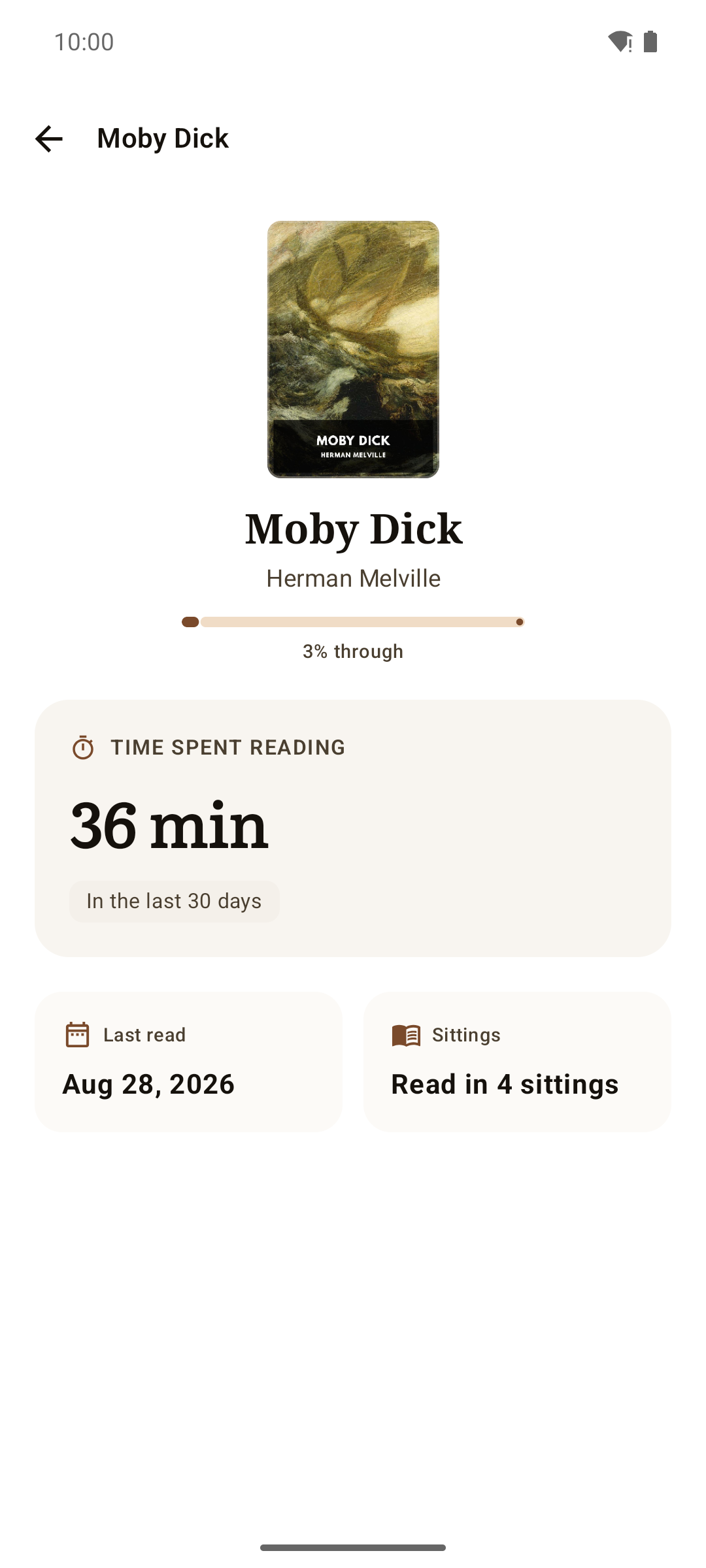
the reading stats overview and one book's page, the Advanced reading
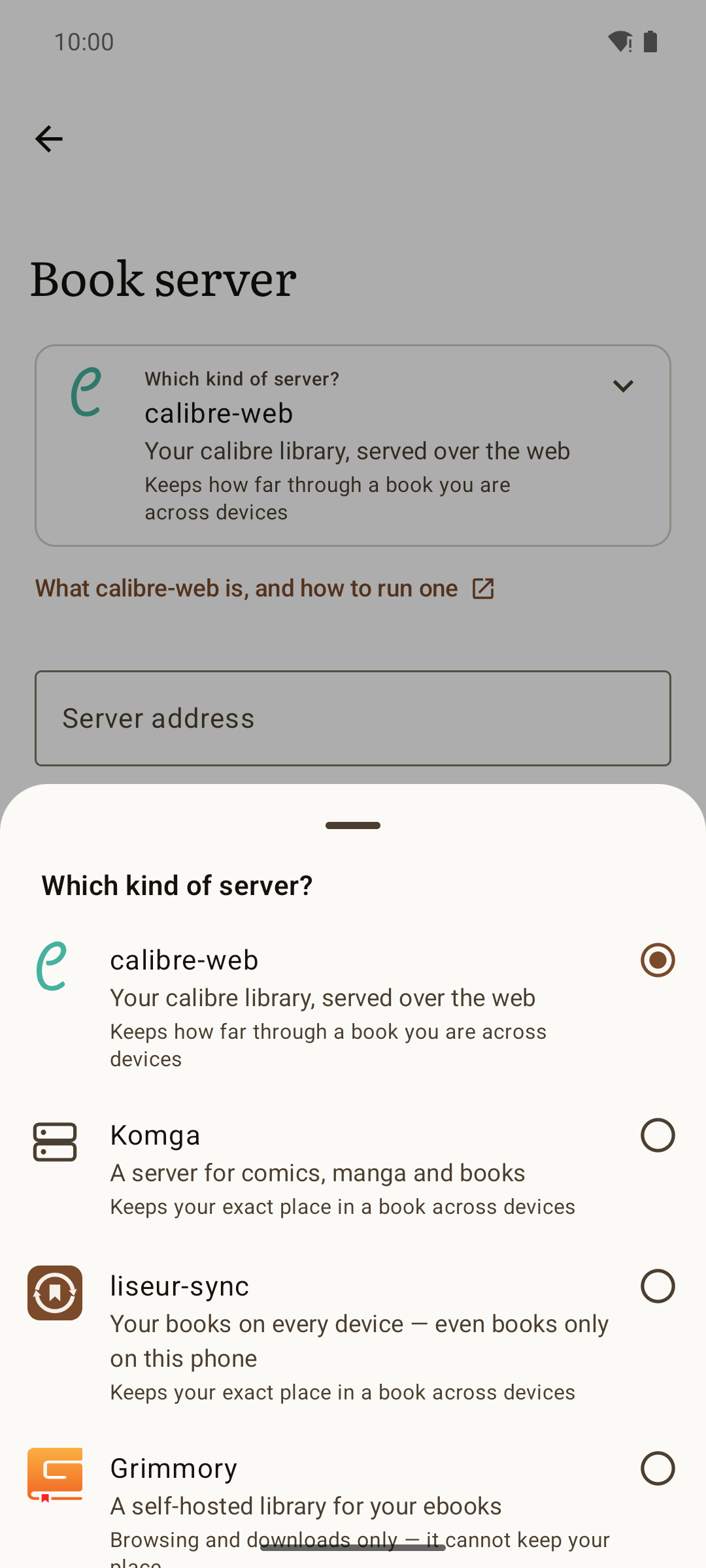
sheet, a long highlight opened out in Navigate, and the sheet listing
the kinds of server. The stats screens need a history to be about, so
the run seeds reading_sessions -- deterministically, and in proportion
to where each book is really open, because a card reading twelve hours
against three per cent of a novel is a picture of a bug.

The stats overview takes the empty library's place in the F-Droid set,
the README keeps three screenshots, and the rest move to
docs/SCREENSHOTS.md, which also picks up the upload offer and the tablet
captures that were linked from nowhere.
5.4 KiB
5.4 KiB
Screenshots
Every screen Liseur has a picture of, captured with hack/screenshots
against an emulator carrying a shelf of Standard Ebooks
editions (public domain, cover art included). The README shows three of
them; the rest are here.
Reading
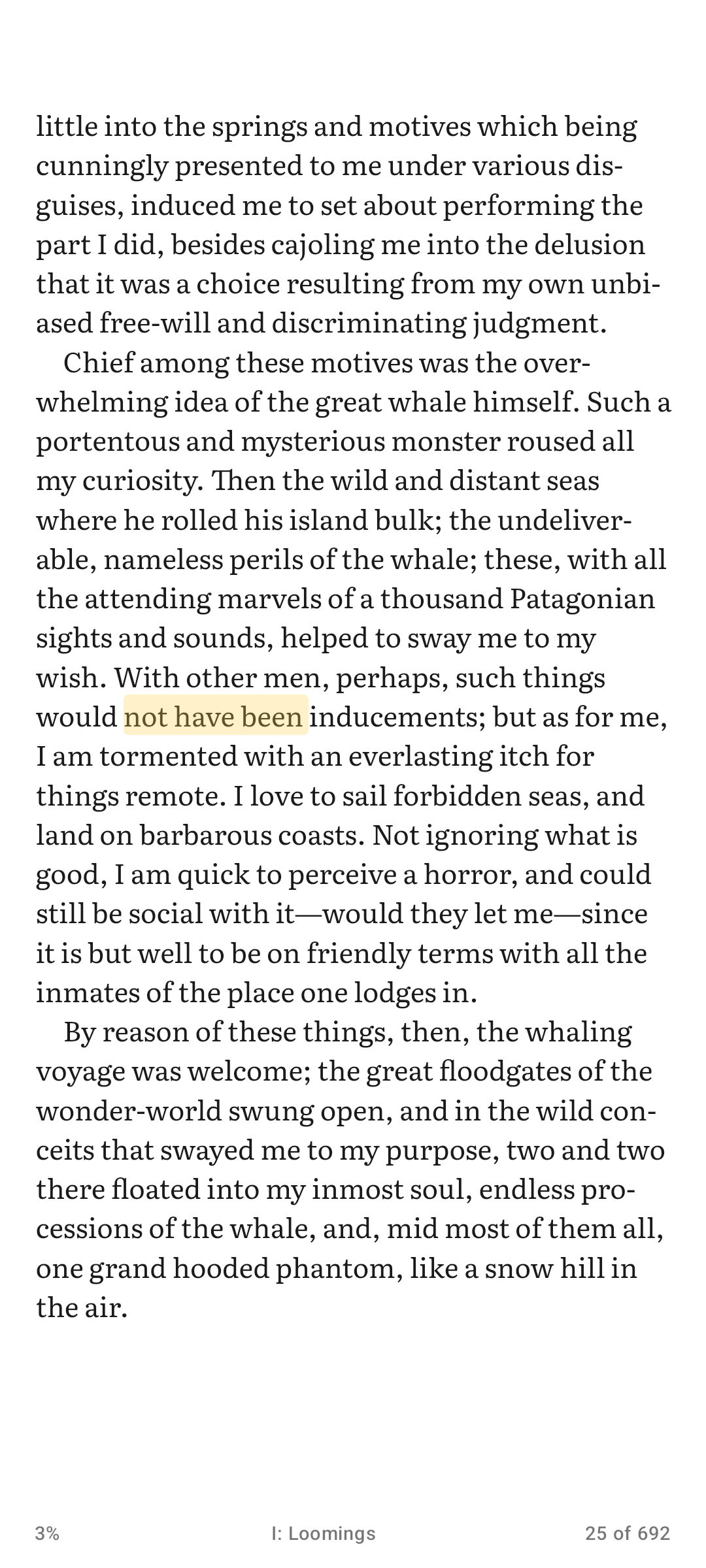 |
 |
 |
| The page, with nothing on it but the book. | Progress, chapter scrubber, and how long is left. | The table of contents, full screen. |
 |
 |
 |
| Theme, size, brightness, typeface, and how the book is read. | Everything set once, if ever, a tap further in. | In-book search, with the line each hit sits on. |
Marks and lookups
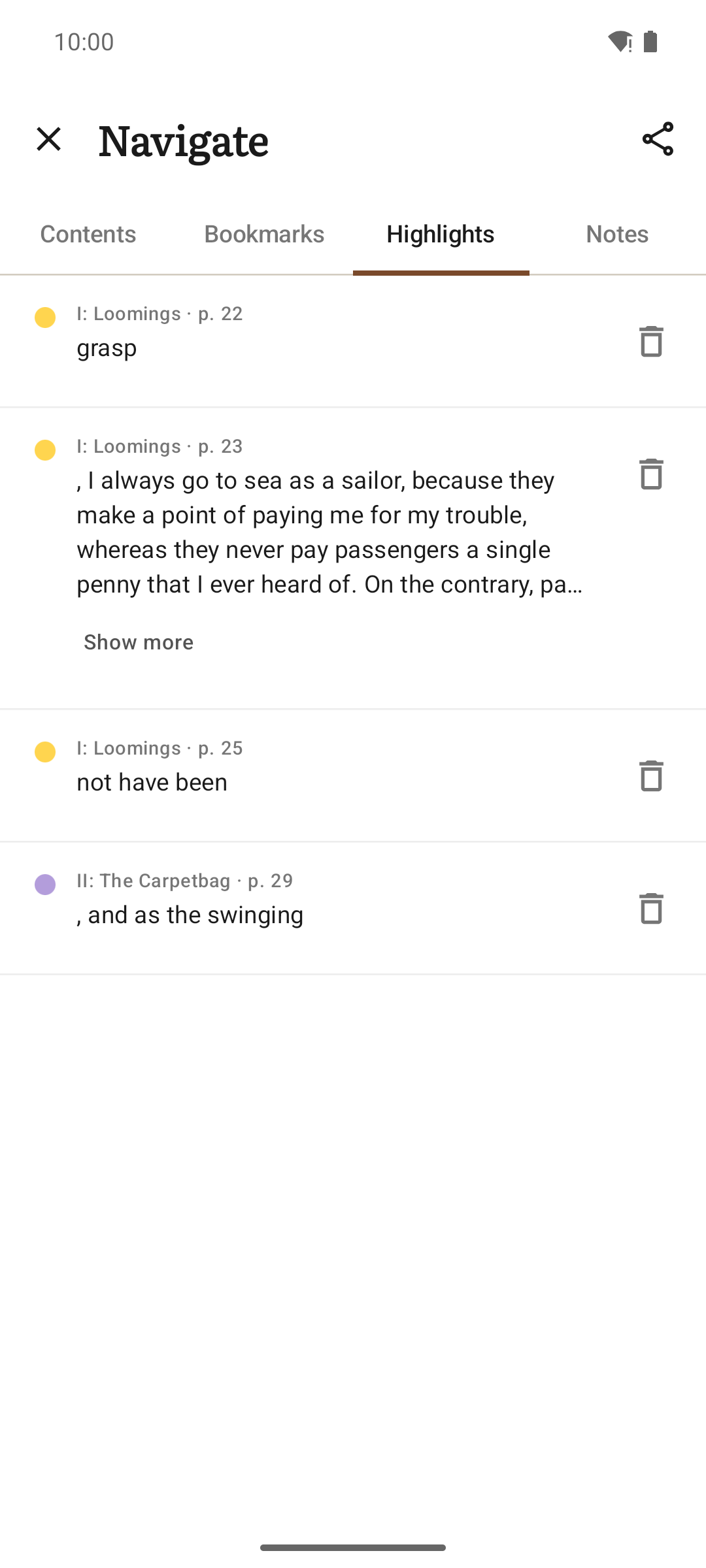 |
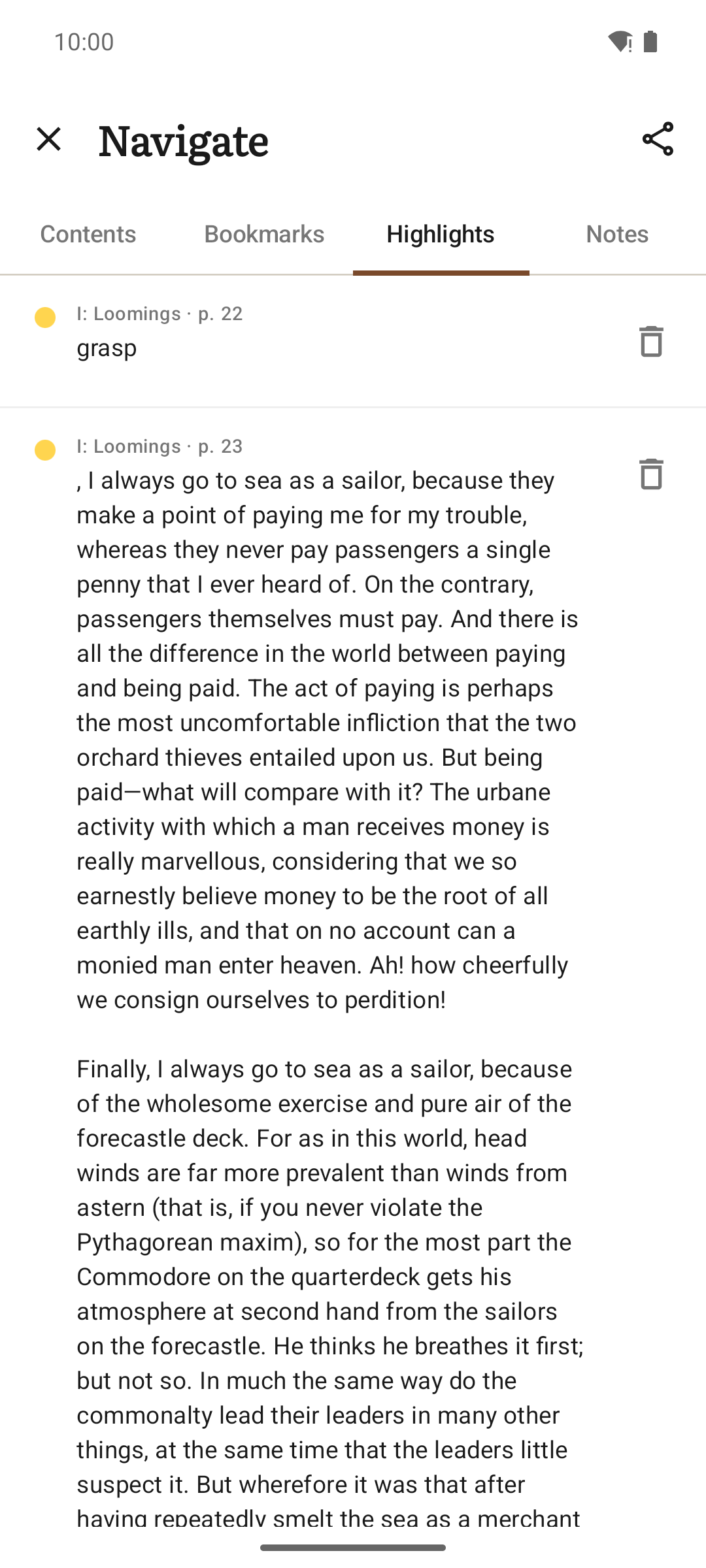 |
 |
| The notebook: highlights, notes and bookmarks, exportable to Markdown. | A passage longer than the list shows, read in full where it is. | A definition without leaving the page. Off until you turn it on. |
The shelf
 |
 |
 |
| Sorted by what you are reading now. | Series gathered into stacks. | Reading order, progress, and which volumes are missing. |
Reading stats
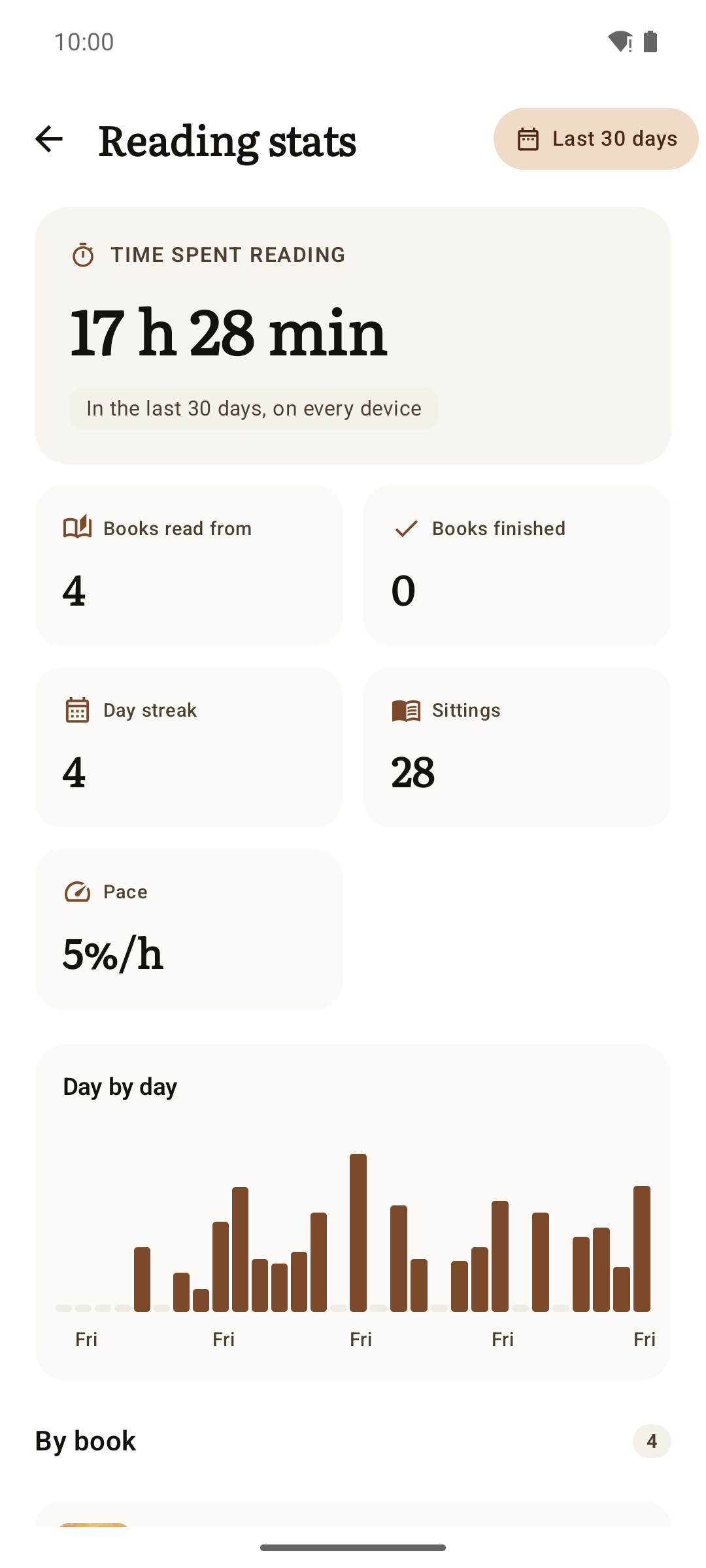 |
 |
|
| Hours, sittings, streak, and the days they landed on. | One book: the pace you read it at, and what is left. |
Counted from the moment you open a book, on this device. Nothing is guessed about reading you did before Liseur arrived.
Setting up
 |
 |
 |
| One server at a time, with your own credentials. | calibre-web, Komga, liseur-sync or Grimmory, and what each carries. | A book only on this phone, offered to a server that takes uploads. |
 |
 |
|
| Everything else. | Three ways to fill a new shelf. |
In the dark
 |
 |
 |
| The shelf follows the system theme. | The reading theme does not have to: Light, Sepia, Dark and OLED Black are the book's own. | A new shelf, after dark. |
On a tablet
 |
 |
 |
| A wide page laid out in two columns. | One column or two, or let the width decide. | More books to a screen, same shelf. |
These are captured, not composed: hack/screenshots --setup builds the
demo shelf, reads a book part-way, marks it up, and photographs the
result. See the header of that script for how to run it.